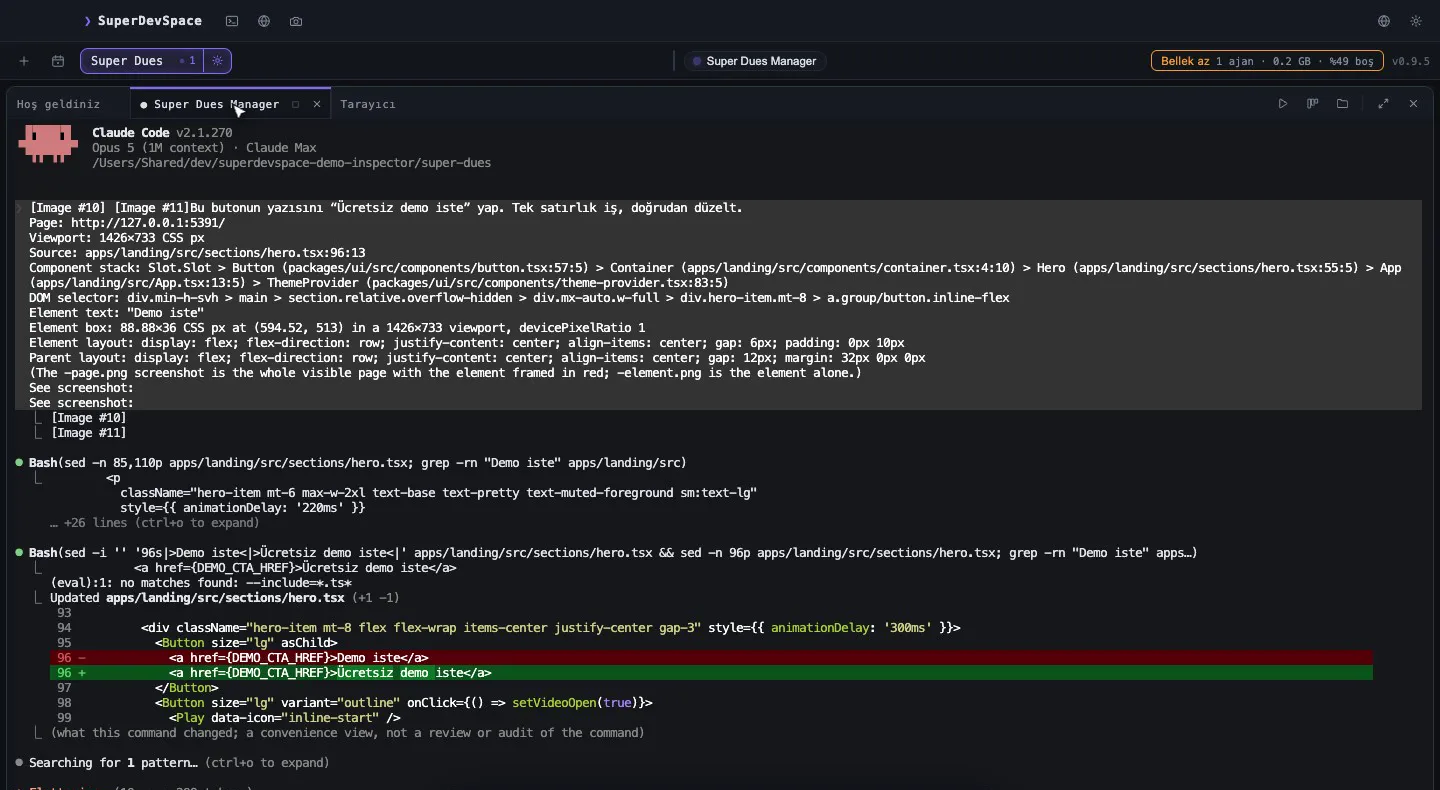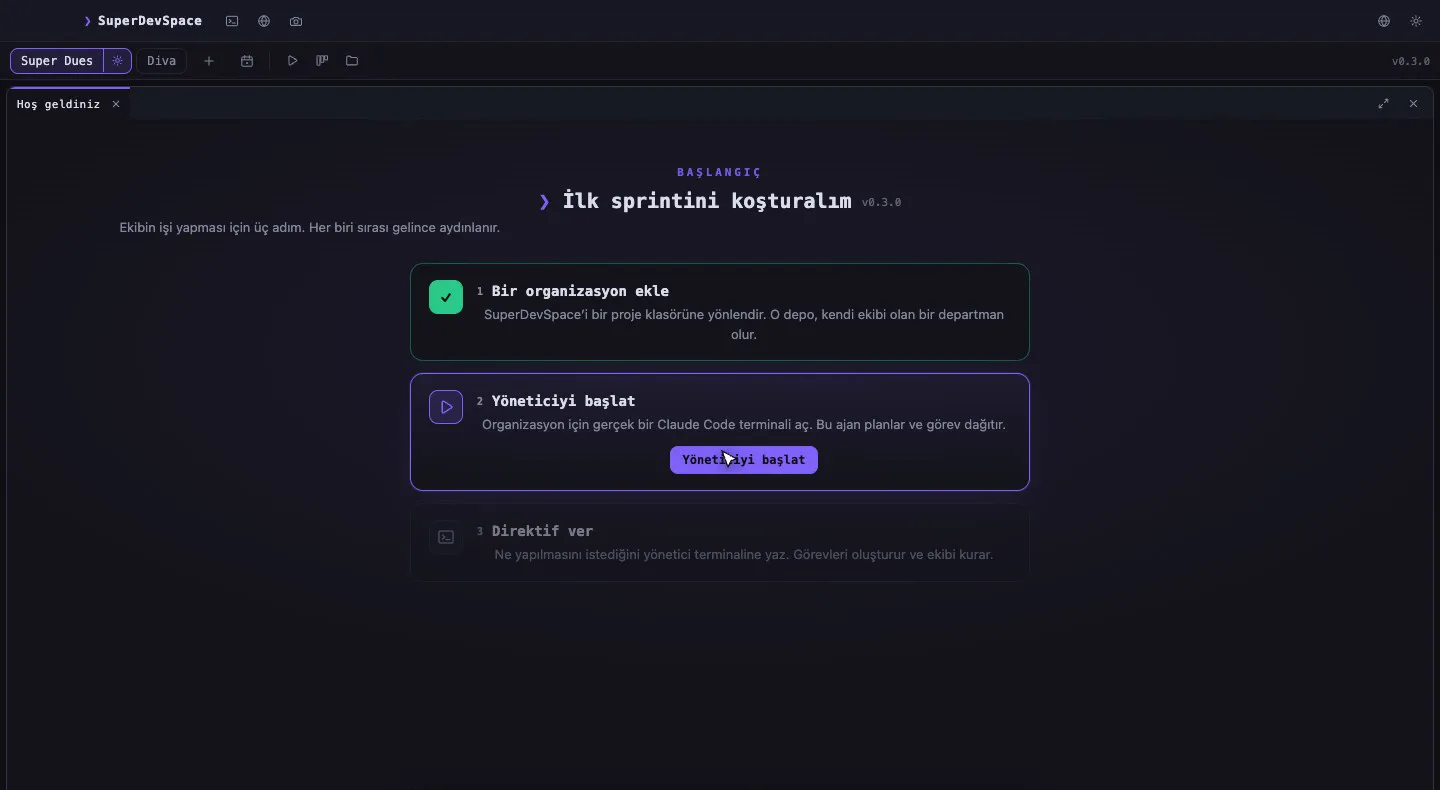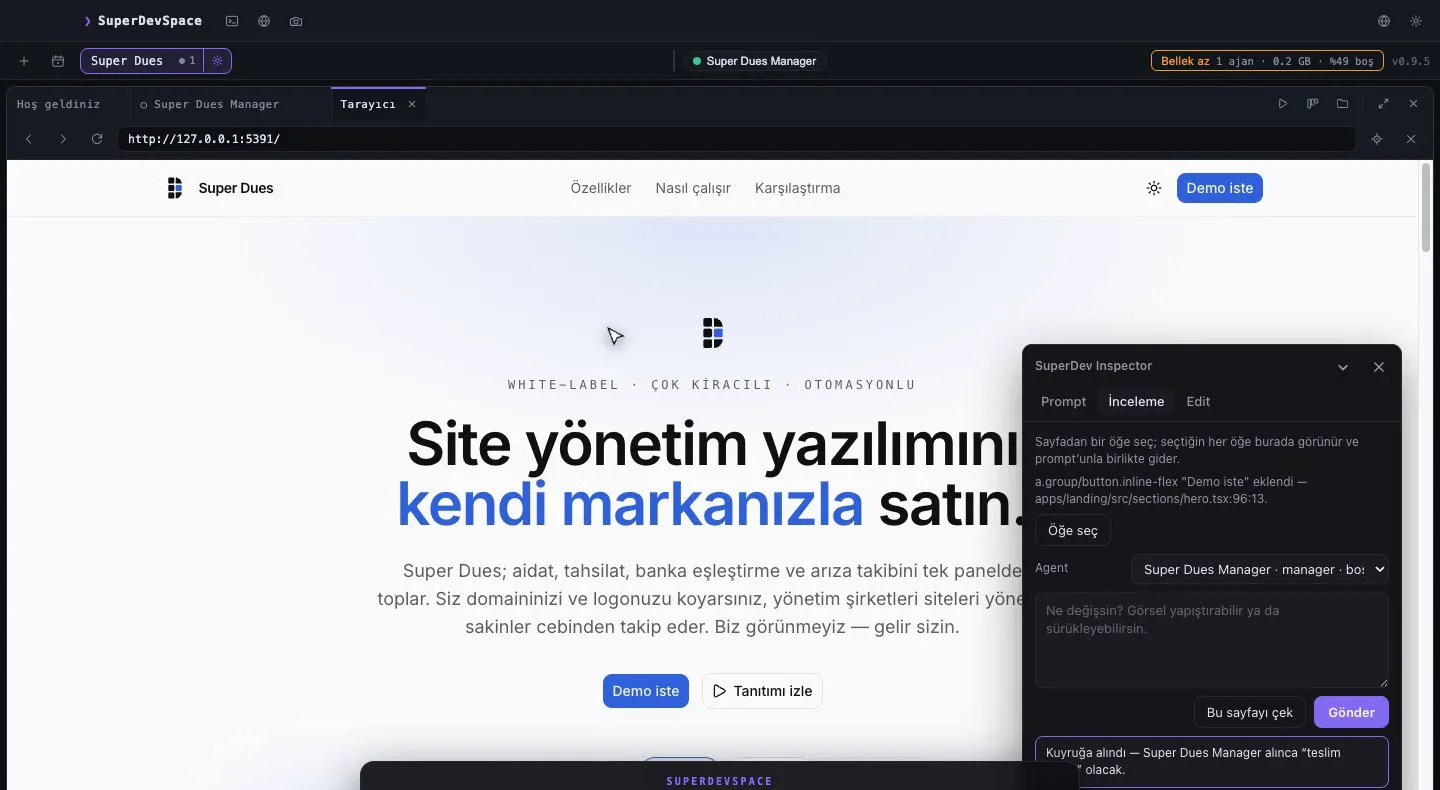
Every project eventually needs something from a website. A payment provider's API key. A webhook secret. A client token from a dashboard three menus deep. An agent can write the integration in minutes, and then it stops and tells you to go and click through a dashboard yourself — because that part happens in a browser, behind your login.
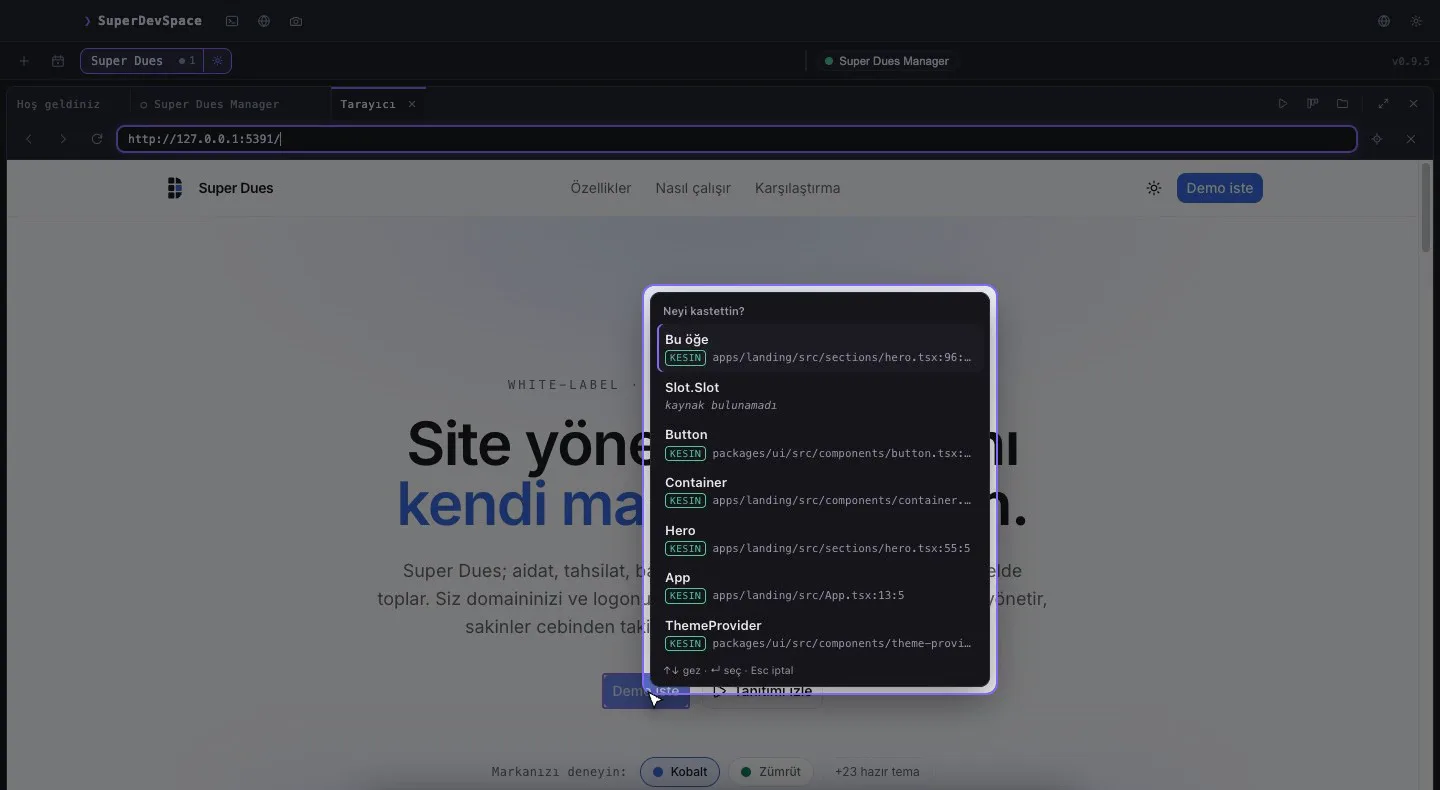
Guided setup is how SuperDevSpace closes that gap. The agent opens the site in the app's own browser, does the clicking it is allowed to do, and hands the page to you, with a pointer and a sentence, exactly when the next step is yours.
Why "just let the agent do it" is the wrong answer
The easy version of this feature would give the agent the whole browser: read every field, type into every box, press every button. That would be fast, and it would be a bad idea. A setup flow is full of things an agent should never touch:
- your password and the one-time code from your phone;
- card numbers, bank details and identity documents;
- the terms you agree to and the payment you approve.
So the design starts from the opposite end. The agent does the routine work — navigate, find the right page, fill in a project name, press Create — and everything personal or binding stays with you.
| Step in a setup flow | The agent | You |
|---|---|---|
| Open the dashboard and find the right page | ✓ | |
| Fill in a project name, a URL, a choice in a list | ✓ | |
| Type your password or the code from your phone | ✗ | ✓ |
| Enter card, bank or identity details | ✗ | ✓ |
| Tick the terms, press "Pay" or "Place order" | ✗ | ✓ |
Read the new API key and store it in .env | ✓ |
How a guided setup runs
The loop is the same on every site, including ones nobody has written instructions for.
- Open the page. The agent opens a browser tab inside the app. Your logins in that browser persist across restarts, so you may already be signed in.
- Look before acting. The agent asks for an outline of the page: one line per heading, button, link, field and frame. Sensitive fields are listed by kind — password, card, bank, one-time code, identity — with "filled" or "empty", never with their value.
- Do its half. It clicks, fills ordinary fields and reads text, re-reading the page after anything that changes it.
- Hand over your half. When the next step is yours, the agent shows a guide card in the page: a short title, one concrete instruction, and a highlight on the field or button it means. You do the step and press Done — hand over. If you are stuck, you press I need help and write what you see; the agent answers in the page.
- Wait in the same turn. While a guide is up, the agent waits for you. Its clicks and typing are refused until you hand the page back, and you can press Stop / take control at any time.
- Take the result home. When the page shows what you came for — an API key, a token, a webhook secret — the agent reads it as a secret and puts it where it belongs, such as the project's
.env. It reports where the key is, not the key.
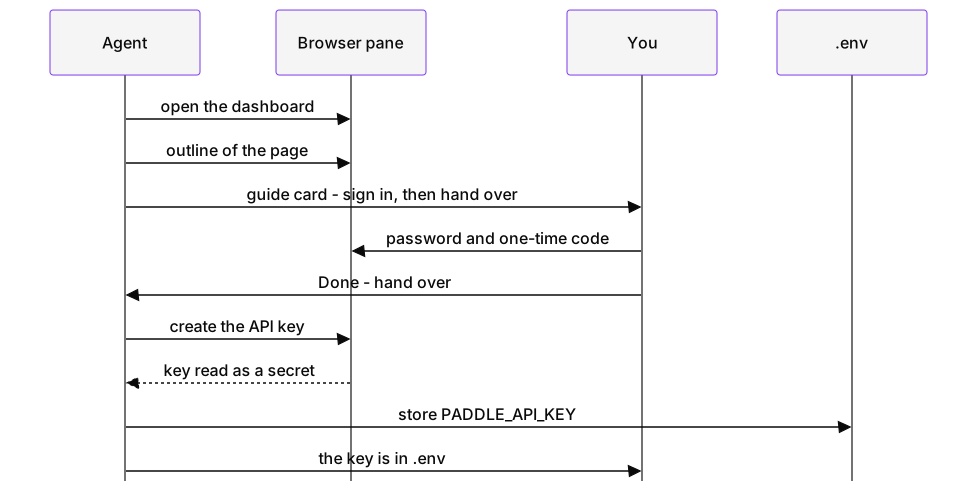
Diagram as text
sequenceDiagram
  participant A as Agent
  participant B as Browser pane
  participant Y as You
  participant E as .env
  A->>B: open the dashboard
  A->>B: outline of the page
  A->>Y: guide card - sign in, then hand over
  Y->>B: password and one-time code
  Y->>A: Done - hand over
  A->>B: create the API key
  B-->>A: key read as a secret
  A->>E: store PADDLE_API_KEY
  A->>Y: the key is in .env
When it is done, you can check the result without printing a secret to your screen:
$ grep -o '^PADDLE_[A-Z_]*=' .env
PADDLE_API_KEY=
PADDLE_CLIENT_TOKEN=
PADDLE_WEBHOOK_SECRET=
PADDLE_ENVIRONMENT=
Rules the app enforces
These are checks in the app, and the agent cannot switch them off:
- No secrets in, no secrets out. The agent cannot type into a password, card, CVC, IBAN, one-time-code or ID field. When it reads the page or takes a snapshot, those values are hidden, and they are scrubbed from any text it reads.
- Screenshots are painted over. Sensitive fields and every cross-origin frame — a card widget, a "Sign in with Google" box — are covered before an agent sees an image.
- No scripts on sensitive pages. Running JavaScript in the page is refused on any page that shows such a field.
- Consent and payment are yours. Clicking a terms checkbox or a "Pay" / "Place order" button is refused.
- Everything is visible. What the agent does in the browser pane is shown to you in the pane's banner as it happens.
- Secrets stay out of the conversation. A value read as a secret is marked sensitive, and the agent is told never to repeat it in chat, reports, task notes or notifications.
Any website, not a list of integrations
Guided setup is a loop, not a library of scripts. It works on a site nobody has written a hint for, because the agent reads the actual page in front of it. For a few services we ship short hint files — Paddle's sandbox dashboard and RevenueCat, for example — that tell the agent where the developer settings usually are. Dashboards move their menus all the time, so the hints say plainly: when the page and the hint disagree, trust the page.
That matters more than it sounds. The integration code an agent writes is only half of a feature; the other half is the account, the key and the webhook on someone else's website. With guided setup, both halves happen in the same session, with the same agent, and you spend your time on the steps only you can do.
Where it fits
Guided setup is part of the same workspace as everything else in SuperDevSpace: the agent that writes your checkout integration is the one that walks you through creating the keys for it, in a browser pane next to its terminal. If you are new here, why we built SuperDevSpace explains the rest of the team around it.
Try it
The trial is 14 days of Premium, no card. Download SuperDevSpace, ask an agent to set up a payment or analytics provider for your project, and let it hand you the page when it is your turn.